DAIR Prepare, Part 2: Logs and Visibility
No tool can recover what was never recorded. The logs to enable before an incident, endpoints first, and why a SIEM is what keeps them long enough to matter.
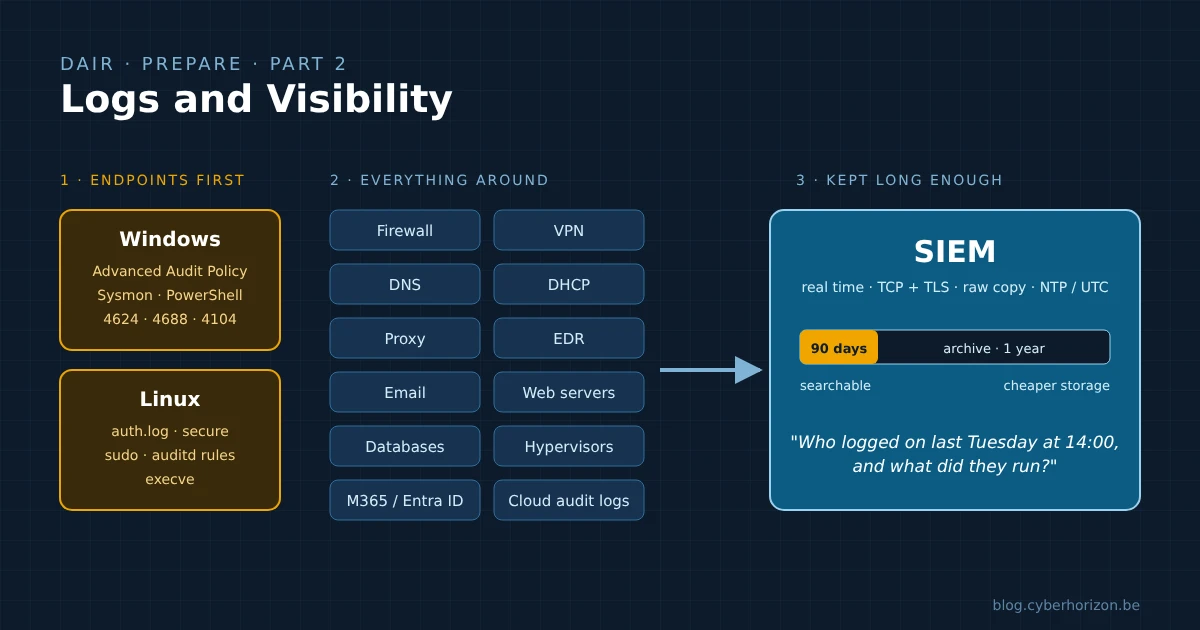
In Part 1, I went through the tools I keep ready before an incident. Tools are only half of the story: they can only analyse what was recorded. This post is about the other half, visibility.
Every responder has heard it at the start of an engagement: “we only keep seven days”, “that server wasn’t logging”, “the logs rolled over”. At that point, the investigation gets much harder. An event that was never logged is gone for good.
Logs aren’t the only evidence, though. Windows also leaves forensic artefacts behind: Prefetch, Amcache, ShimCache, the $MFT, registry hives, LNK files, SRUM… They often prove that a program ran or a file existed, even when no log recorded it. But they’re partial: they rarely tell you who logged on, from where, or what crossed the network, and many of them get overwritten over time. Artefacts and logs complement each other; artefacts will get their own post later in the series.
The priority order I recommend is simple: endpoints first, because that’s where attackers execute, persist and move from. Then everything around them. And finally, a SIEM to keep it all long enough to be useful.
1. Endpoints first
Whatever the system, the logging guide of ANSSI, the French cybersecurity agency, gives a good minimal baseline of event categories to collect: authentication (logons, successes and failures, use of privileges), account management (creations, group memberships, password changes), security policy changes (including changes to the audit policy and cleared logs), access to sensitive resources, process activity (starts, scripts, module loading) and system activity (startups, kernel modules, hardware). The advice is to start with a small set that works, then extend it step by step, rather than aiming for everything on day one.
Windows
Out of the box, Windows records far less than you need for an investigation. Many audit categories are disabled, and the Security log is small enough to roll over in hours on a busy server.
Enable the Advanced Audit Policy. Configure it through Group Policy (Computer Configuration > Policies > Windows Settings > Security Settings > Advanced Audit Policy Configuration), not through the legacy basic policy. Don’t mix the two: Microsoft warns that combining basic and advanced settings can give unexpected results. Enable Audit: Force audit policy subcategory settings to override audit policy category settings (under Security Options) so the advanced policy wins. The categories that matter most in an investigation:
| Category | Why it matters |
|---|---|
| Logon/Logoff | Who logged on, from where, and how (interactive, network, RDP…) |
| Account Logon | Credential validation and Kerberos activity on domain controllers |
| Account Management | Accounts created, enabled, changed, added to privileged groups |
| Detailed Tracking | Process creation: what ran on the machine |
| Object Access | Scheduled tasks, file shares, removable storage |
| Policy Change | Changes to the audit policy itself, a classic attacker move |
| System | Service installation, security state changes |
Two references I use to choose the exact settings:
- Microsoft’s audit policy recommendations give, for each subcategory, the Windows default, a baseline recommendation and a stronger one. For incident response, the stronger column is the one worth looking at: Kerberos, credential validation and account management in success and failure, process creation, and policy changes.
- Hack The Logs offers a ready-to-use baseline that goes further, for example on file shares, removable storage and scheduled tasks (Other Object Access Events). I use it a lot in my log trainings.
Microsoft makes a point worth repeating: don’t audit only servers and domain controllers. The first signs of an intrusion very often appear on workstations.
Then add what the audit policy alone doesn’t give you:
1
2
3
4
5
6
7
8
9
10
11
# Include the command line in process creation events (4688)
reg add "HKLM\Software\Microsoft\Windows\CurrentVersion\Policies\System\Audit" /v ProcessCreationIncludeCmdLine_Enabled /t REG_DWORD /d 1 /f

# PowerShell Script Block Logging (4104)
reg add "HKLM\SOFTWARE\Policies\Microsoft\Windows\PowerShell\ScriptBlockLogging" /v EnableScriptBlockLogging /t REG_DWORD /d 1 /f

# Increase the Security log size (4 GB is my choice here; the value must be a multiple of 64 KB)
wevtutil sl Security /ms:4294901760

# Check what is actually enabled
auditpol /get /category:*
- Command line in 4688: without it, you know
powershell.exeran, but not what it did. The command-line field stays empty until you enable it, and it only works if Audit Process Creation is enabled too. Through Group Policy: Computer Configuration > Administrative Templates > System > Audit Process Creation > Include command line in process creation events. - PowerShell 4104: records the script blocks, including deobfuscated code.
- Sysmon: process, network, DNS, file and registry telemetry, independent of your EDR. Start from a community configuration such as SwiftOnSecurity or sysmon-modular.
- Log sizes: the Windows default for the Security log is 20 MB. Hack The Logs recommends around 4 GB for Security and 2 GB for System and Application. Forwarding to a SIEM is still the real answer (see section 3).
The Event IDs I look at first in an investigation:
| Event ID | What it tells you |
|---|---|
| 4624 / 4625 | Successful / failed logon (check the logon type: 3 network, 10 RDP) |
| 4648 | Logon with explicit credentials (runas, lateral movement) |
| 4672 | Special privileges assigned to a logon (admin activity) |
| 4688 | New process created (with command line) |
| 4697 / 7045 | Service installed (persistence, PsExec-style execution) |
| 4698 | Scheduled task created |
| 4720 / 4732 / 4728 | Account created / added to a local or global security group |
| 4768 / 4769 / 4776 | Kerberos TGT / service ticket / NTLM validation (mainly on domain controllers) |
| 5140 / 5145 | Network share accessed (lateral movement, data staging) |
| 4104 | PowerShell script block |
| 1102 / 104 | Security log cleared / another event log cleared (recorded in System) |
| 1006–1009, 1116–1119 | Microsoft Defender detections (Defender Operational log) |
Alert on 1102 and 104. A cleared log in the middle of the night is rarely maintenance.
Linux
Linux logs a lot by default, but not always what an investigation needs, and not for long. ANSSI’s Linux configuration guide (BP-028) is a solid reference here.
- Authentication:
/var/log/auth.log(Debian/Ubuntu) or/var/log/secure(Red Hat family), pluswtmp,btmpandlastlog(replaced bylastlog2on some recent distributions) for logon history and failures. - Traceable admin actions: named administrator accounts using
sudo, which logs every command, rather than a shared root account. Disable root logins, and watch for the obvious bypass:sudo bashgives a root shell whose commands sudo no longer sees. - auditd with real rules: the audit daemon often runs with almost no rules, so it records almost nothing useful. A good starting point:
1
2
3
4
5
6
7
8
9
10
11
12
13
14
15
# Every process execution, 64- and 32-bit
-a exit,always -F arch=b64 -S execve,execveat
-a exit,always -F arch=b32 -S execve,execveat

# Changes to configuration files (accounts, sudoers, SSH, cron, services…)
-w /etc/ -p wa

# Reading other processes' memory, e.g. credential theft
-a exit,always -F arch=b64 -S ptrace,process_vm_readv,process_vm_writev

# Kernel module loading, a classic rootkit technique
-a exit,always -F arch=b64 -S init_module -S finit_module -S delete_module

# Lock the audit configuration until the next reboot
-e 2
Treat these rules as a starting point to test, not something to copy into production as is. Logging every execution, or every write under /etc/, generates a lot of volume: test it on a few machines first, narrow the watches to the files that matter (/etc/passwd, /etc/shadow, /etc/sudoers, /etc/ssh/, cron…) if needed, and forward logs off the host. To reduce it, you can filter on real users (-F auid>=1000 -F auid!=unset). The last line, -e 2, makes the rules immutable: an attacker with root can no longer quietly disable auditing without rebooting the machine. The flip side: your own rule changes also need a reboot, so plan them like any other change. For a broader, ready-to-use rule set, see Neo23x0/auditd.
- Persistent journal: depending on the distribution,
journaldmay keep logs in memory only and lose them at reboot. SetStorage=persistentin/etc/systemd/journald.conf, and useSystemMaxUseso logs can’t fill the disk. - A dedicated
/var/logpartition, sized for the server’s role, so that a log flood can’t take the system down (and the other way round). - Retention: default log rotation often keeps only a few weeks (four weekly rotations is common on Debian and Ubuntu). An intrusion discovered after two months will have nothing left locally.
- Forward everything off the host, with rsyslog over TCP (ideally TLS): an attacker with root can edit local files.
- File integrity monitoring (AIDE, Samhain…) is a useful complement: it tells you which binaries and configuration files changed, provided its database is stored or signed outside the monitored machine.
Hack The Logs has a good reference page on Linux log locations, rsyslog and journald configuration.
2. Then everything around the endpoints
Endpoints tell you what happened on a machine. The rest of the infrastructure tells you how the attacker got there, where they went and what left the network.
A useful priority list: internet gateways, critical servers, administration workstations, update servers, directory servers, hypervisors and backup servers. Those are exactly the systems attackers go after.
| Source | What to keep | Why it matters in an investigation |
|---|---|---|
| Firewall | Allowed and denied connections | Command-and-control, exfiltration, scanning |
| VPN / remote access | Authentications, source IPs, session durations | A frequent entry point for ransomware groups |
| DNS | Queries per client | Malicious domains, beaconing, DNS tunnelling |
| DHCP | IP-to-host leases | Turning an IP from a firewall log into a machine name |
| Proxy / web gateway | URLs, user, volumes | Downloads, uploads, cloud storage exfiltration |
| EDR / antivirus | Telemetry, alerts and hashes of detected files | Check the retention: it’s often much shorter than you think |
| Email gateway | Messages, attachments, URLs, verdicts | Phishing, the first link of many intrusions |
| Web servers (Apache, IIS) | Access and error logs | Exploitation of exposed applications, web shells |
| Databases | Logons, privileged queries, exports | What data was accessed or stolen |
| Hypervisors (ESXi, Hyper-V) | Logons, VM operations | Ransomware groups increasingly target hypervisors directly |
| Microsoft 365 / Entra ID | Unified Audit Log, sign-in and audit logs | Mailbox access, forwarding and inbox rules, OAuth apps, impossible travel |
| AWS / Azure / GCP | CloudTrail, Activity Log, Cloud Audit Logs | API calls, new keys, changed permissions |
On Microsoft 365, pay special attention to mail rules. Business email compromise very often goes through them: the attacker forwards mail to an outside address, or hides replies from the victim by moving or deleting them automatically. In the Unified Audit Log, watch for:
| Operation | What it means |
|---|---|
New-InboxRule, Set-InboxRule, UpdateInboxRules | An inbox rule was created or changed (the last one when it’s done from Outlook) |
Set-Mailbox with ForwardingSmtpAddress or ForwardingAddress | Mailbox-level forwarding was configured |
New-TransportRule | An organisation-wide mail flow rule was created (requires admin rights) |
Rules that forward to an external domain, delete messages or move them to rarely used folders (RSS Feeds, Archive…) deserve a closer look.
Two cloud traps worth knowing:
- Microsoft Entra ID keeps sign-in and audit logs for only 7 days on the free tier and 30 days with P1/P2.
- AWS CloudTrail records management events by default, but its event history only covers 90 days, and data events (such as reads of objects in S3 buckets) are not logged by default.
In both cases, if the logs aren’t exported somewhere, they’re gone when you need them. Hack The Logs covers each of these families (web, databases, security solutions, network, virtualisation and cloud) in more detail.
3. A SIEM to keep everything long enough
Local logs have three weaknesses: they rotate, an attacker with admin rights can clear them, and they’re scattered across hundreds of machines. A SIEM (Security Information and Event Management) addresses all three: it collects the logs from every source, stores them centrally and makes them searchable.
From an incident responder’s point of view, the SIEM matters for one reason above all: dwell time. Intrusions are often discovered weeks after the initial access. If your logs only cover the last seven days, you’ll see the end of the attack but never its beginning.
What I recommend, largely in line with the ANSSI logging guide:
- Retention: at least 90 days searchable, and ideally one year in cheaper archive storage. For reference, the guide cites a general range of six months to one year, depending on regulatory requirements. Archive storage costs little compared with an investigation without evidence.
- Send in real time, over TCP and TLS: the closer to real time, the less an attacker can erase before it leaves the machine. UDP syslog loses messages and travels in clear text.
- Keep an unaltered copy: parse and normalise on the central side, but keep the raw logs. In an investigation or in court, the original matters.
- Monitor the collection chain: a source that silently stops sending is a blind spot. Alert when a server, a domain controller or a laptop connected to the network hasn’t sent anything for a while, and collect remote laptops through the VPN. A machine that suddenly stops logging, or logs far more than usual, may itself be a sign of an incident.
- Protect the SIEM itself: place the collectors in a dedicated administration zone, restrict who can read and delete logs, and don’t manage the platform from the domain you’re monitoring. If the attacker becomes domain admin, they shouldn’t be able to delete your logs. Log access to the SIEM itself, and keep an offline archive.
- Synchronise time: all sources on NTP, from several consistent internal sources, ideally in UTC. Aim for an accuracy of at least one second. Correlating events across systems with clock drift is painful.
- Don’t send everything blindly: start with the sources in this post, avoid debug-level verbosity, then tune. Keep in the SIEM what is useful for detection and investigation, and send compliance-only logs to cheaper storage: a SIEM full of noise is expensive and slow to search.
- Choose what fits: commercial platforms (Microsoft Sentinel, Splunk, Elastic…) or open-source options such as Wazuh or Graylog. What matters is that the logs are there, searchable and retained, not the brand.
Having a SIEM doesn’t mean having detection. Collection and retention are what this post is about; writing and tuning detection rules is a topic for the Detect step of the series.
4. Test your visibility
A logging configuration you haven’t tested is a hypothesis. A simple exercise, to do today:
- Pick a random server.
- Ask: who logged on to it last Tuesday at 14:00, from where, and what did they run?
- Time how long it takes to answer, and note which logs were missing.
If you can’t answer in fifteen minutes now, you won’t answer it during an incident either. Repeat with a workstation, a domain controller, a VPN user and a cloud account.
To go one step further, replay a simple attack scenario in a test environment: a malicious attachment, credential theft, a remote logon, a new local admin account. Tools such as Atomic Red Team make this easy. Then check that every step shows up in your SIEM. Each missing step is a gap to fix now, not during an incident.
Next: the shared infrastructure that lets a whole team investigate together: Velociraptor server, case management, shared timeline and threat intelligence, behind a VPN.
References
- ANSSI: Recommandations de sécurité pour l’architecture d’un système de journalisation (PA-012, v2.0, 2022)
- Hack The Logs: Windows logs and all log families
- Microsoft: audit policy recommendations
- Microsoft: Appendix L, events to monitor
- Sysmon (Microsoft Sysinternals)
- SwiftOnSecurity Sysmon configuration
- sysmon-modular (Olaf Hartong)
- ANSSI: Recommandations de configuration d’un système GNU/Linux (BP-028, v2.0, 2022)
- Neo23x0 auditd rules
- Splunk: Hunting M365 invaders, email collection techniques
- Microsoft Entra data retention
- AWS: CloudTrail management and data events
- Wazuh · Graylog
Need help with an incident? Through Cyber Horizon, I offer incident response for businesses in Belgium and beyond. Learn more about incident response or get in touch.